

Google Chrome consumes RAM even after closing it: how to disable the Gemini feature

Google Chrome consumes RAM even after closing it: how to disable the Gemini feature

A user discovered that a feature of the artificial intelligence assistant keeps processes active after closing the browser. How to modify the settings

Share:

A feature of Gemini, Google's artificial intelligence assistant, can cause Chrome to continue consuming RAM even after closing all browser windows The issue was identified by a Windows user who detected several active processes in the Task Manager, consuming between 300 and 700 megabytes.

The discovery was shared on Reddit, where the user explained that for a while they had to manually end Chrome processes every time they stopped using the browser.

“I tried practically everything. The option to continue running background apps was already disabled,” the user recounted, who also removed web apps, disabled extensions, cleared cookies and cache files, reset settings, and disabled hardware acceleration.

None of these modifications managed to solve the issue. However, by creating a new profile without signing in with their Google account, they found that the browser correctly ended all its processes.


Imagen 1476553

The Gemini feature that keeps Google Chrome active

The source of the consumption was linked to a setting related to the integration of the AI assistant with the browser.

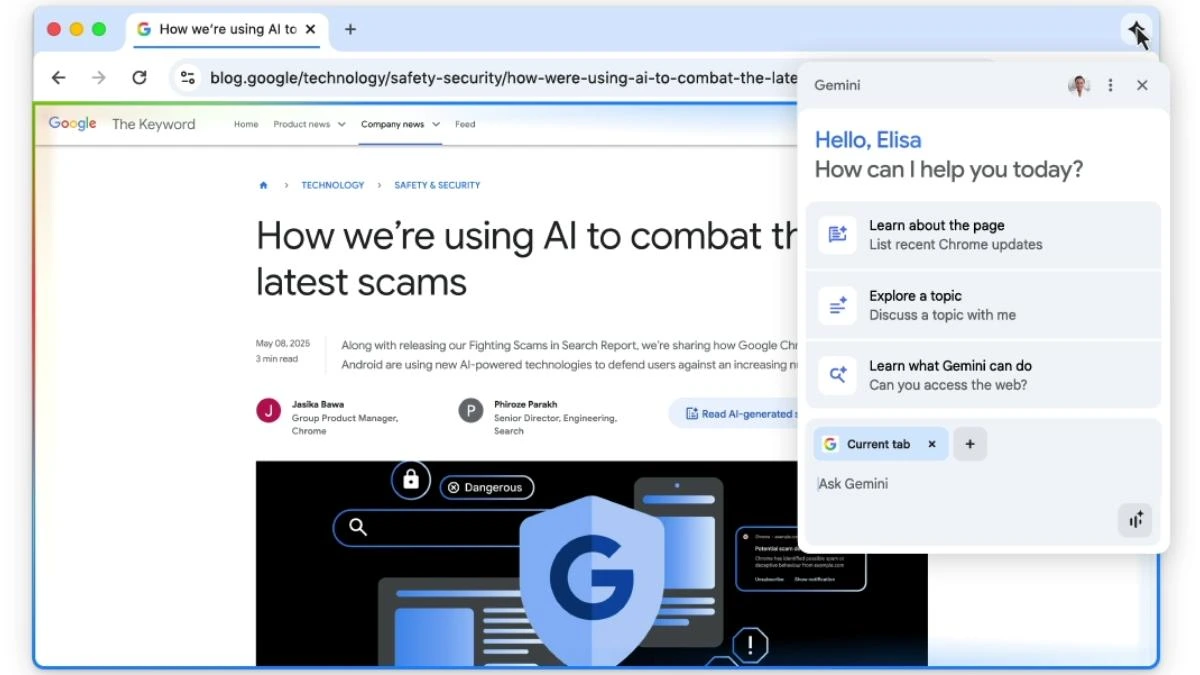
This is a tool that allows access to Gemini from the Windows system tray via a shortcut or a key combination, without needing to have a browser window open.

To keep this functionality available, Chrome may keep active background processes that continue to use computer resources.

Google's documentation confirms that users can manage this preference from the section dedicated to Gemini. However, the company does not specify a specific amount of RAM needed for its operation.
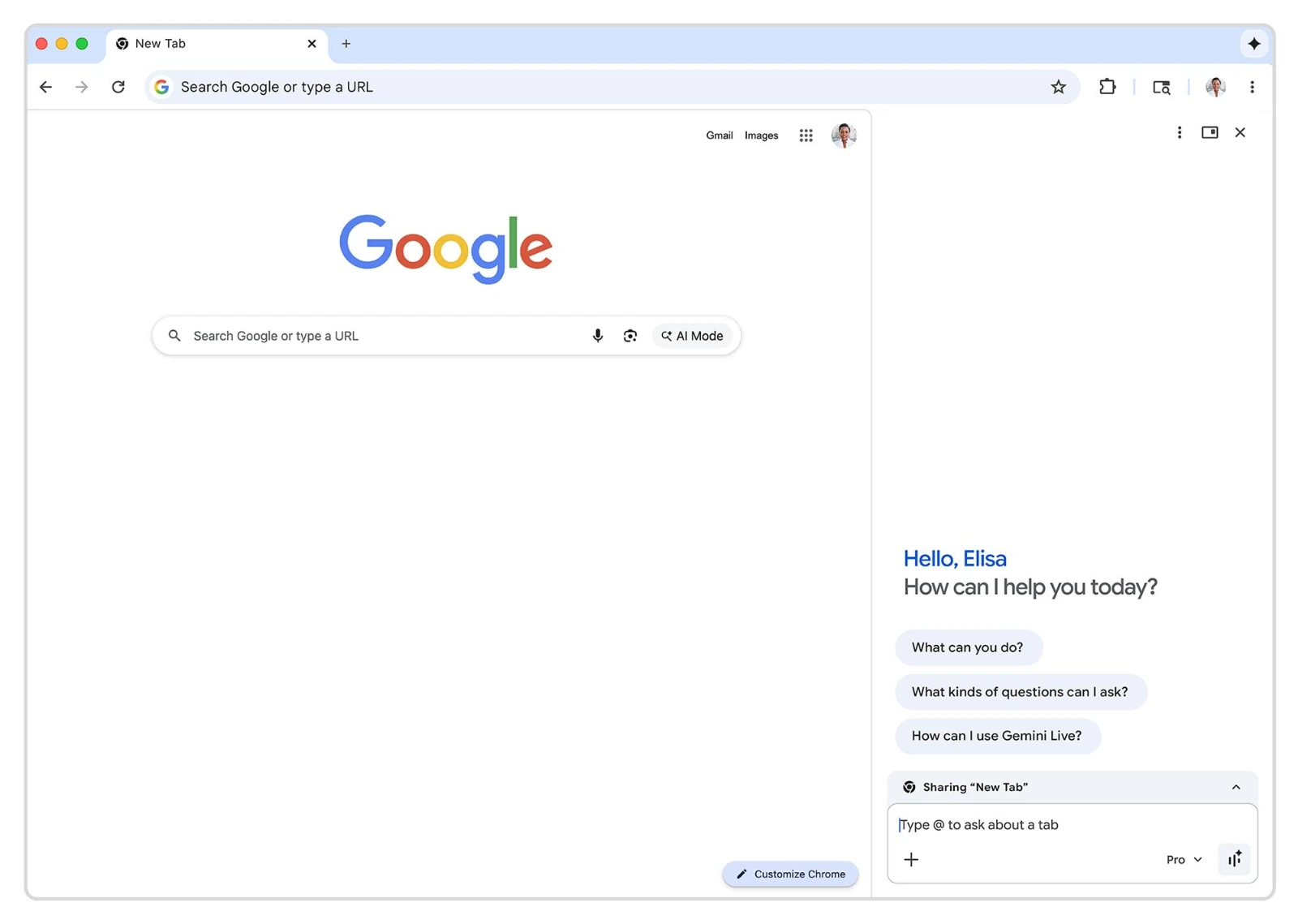
Imagen 1476552

How to configure Google Chrome to free up RAM

To modify the operation of the AI assistant, it is not necessary to install additional applications, remove extensions, or make changes to Windows settings.

Users who have this feature available should follow these steps:

  1. Open Google Chrome.

  2. Click the three dots located in the upper right corner.

  3. Go to Settings.

  4. Select AI Innovations.

  5. Access the Gemini section in Chrome.

  • Disable the option that allows showing Gemini in the system tray and enable the keyboard shortcut.

  • It is also possible to directly access the settings section via the address chrome://settings/ai/gemini, which should be entered in the navigation bar.

    Those who do not regularly use the assistant can also disable the Gemini access button located at the top of the browser.

    Once the changes are made, users can check resource consumption via the Windows Task Manager, accessed with the key combination Ctrl + Shift + Esc.

    “Once I disabled that option, Chrome completely closes when I close it,” said the user who identified the issue.

    Imagen 1476551

    Other AI settings that can be modified in Chrome

    Within the same settings section, Google allows managing permissions related to the content that Gemini can access during conversations.

    One of the options is to disable the option to share the current tab by default. This way, the user can decide when to provide the assistant with the content of a web page.


    On the other hand, Chrome has AI models that run directly on the computer and allow certain tasks to be performed without relying solely on remote processing.

    These models can be used to detect potential scams, summarize web pages, organize tabs, and assist users in writing texts.

    According to Google's official documentation, downloading these models requires approximately 20 GB of free disk space, although this does not mean that the files necessarily occupy that amount of storage.

    Users who wish to recover space can go to Settings, select AI Innovations, and disable AI on the device.

    This modification removes the files of the local models and prevents them from being redownloaded while the setting remains disabled. However, it also disables tools that depend on those models, including certain scam protection features.